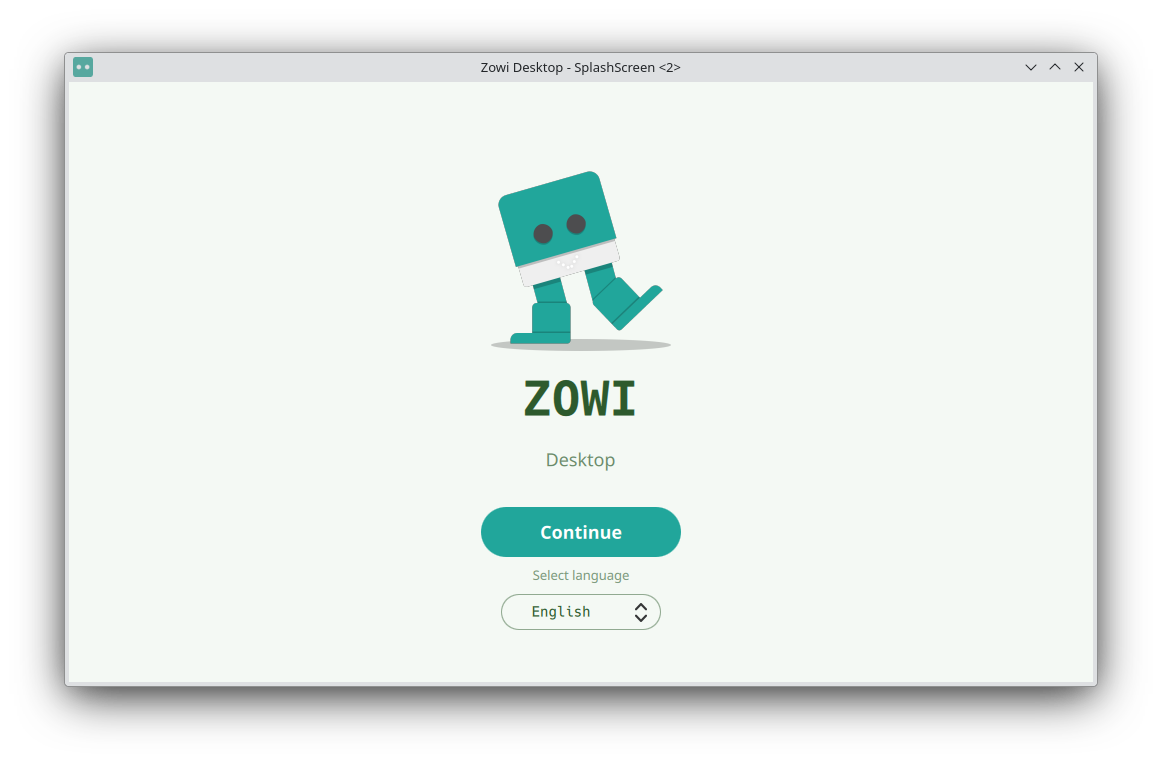
Splash screen with language selector
Zowi Desktop is a cross-platform application to control and program your Zowi robot from a computer over Bluetooth. This guide walks you through every screen of the app.
When the app opens you see the splash screen. Pick your language from the list — Español, Valencià, English, Français, Български — and press Continue. You can also Quit the app from here.
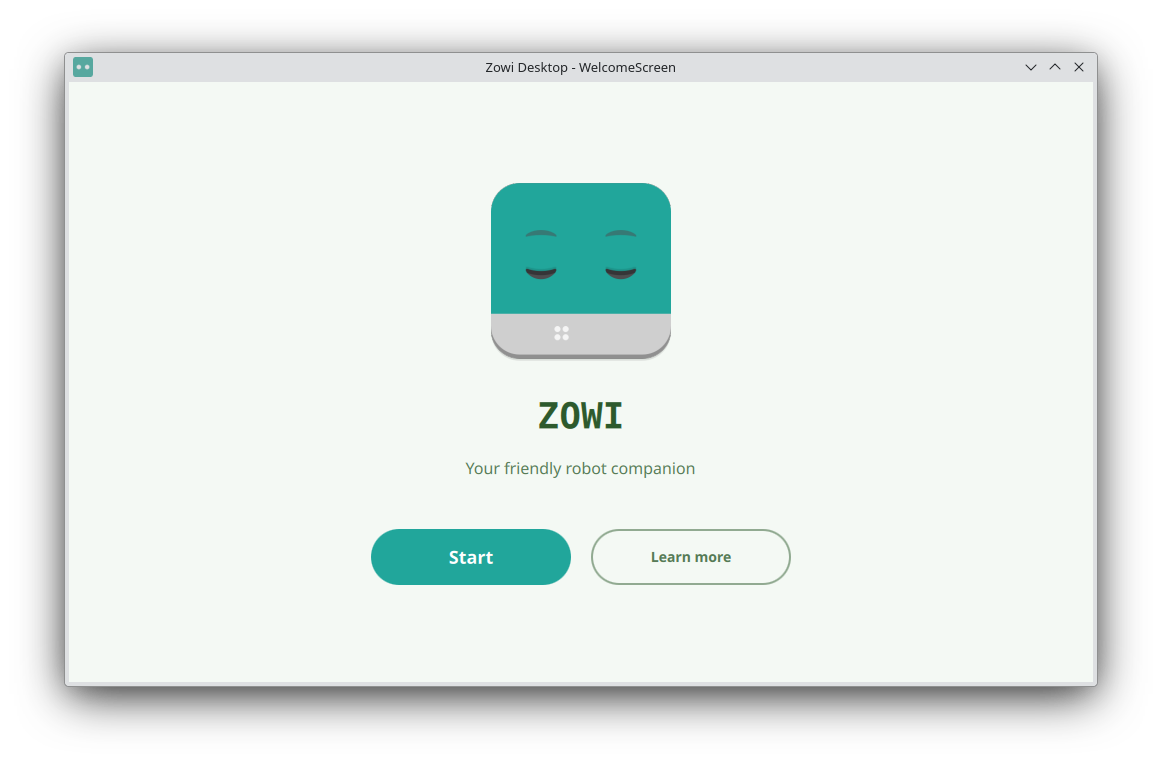
The welcome screen introduces Zowi. Press Start to begin the setup, or Learn more to read about the robot.
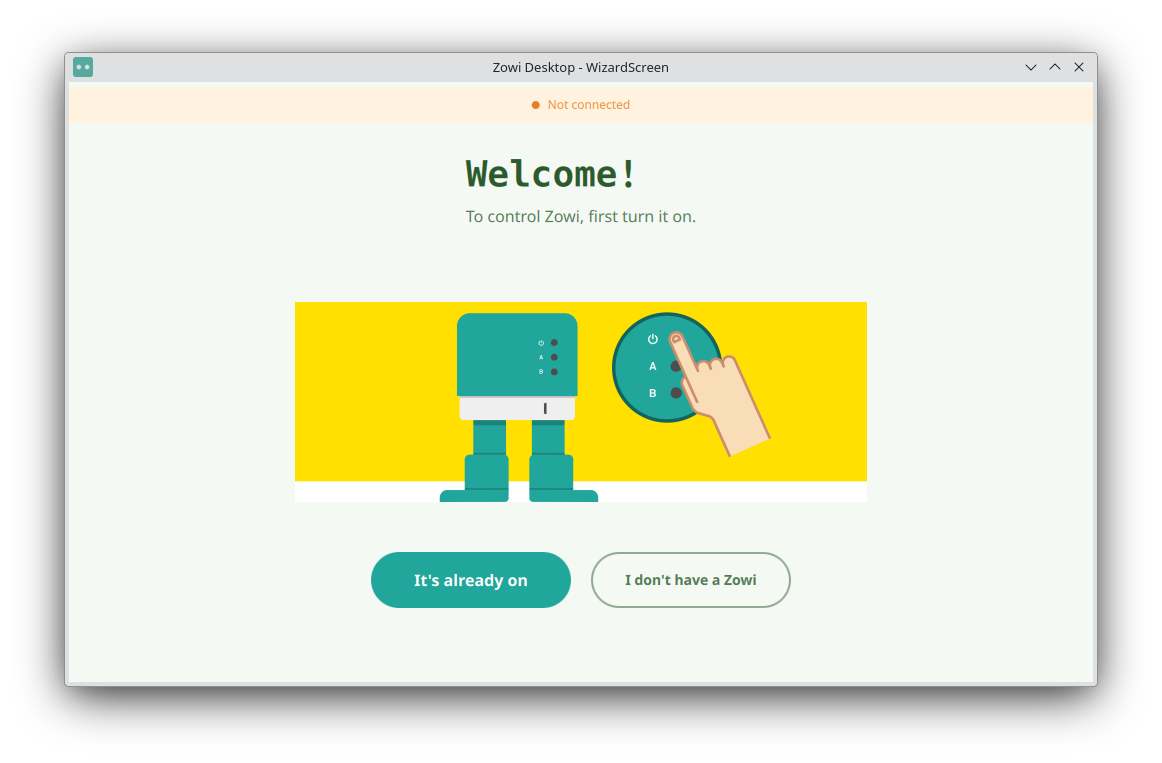
The setup wizard checks that your Zowi is ready. Make sure it is turned on and nearby. If it is already on, choose “It's already on”. If you don't own a Zowi yet, you can still explore the app without one.
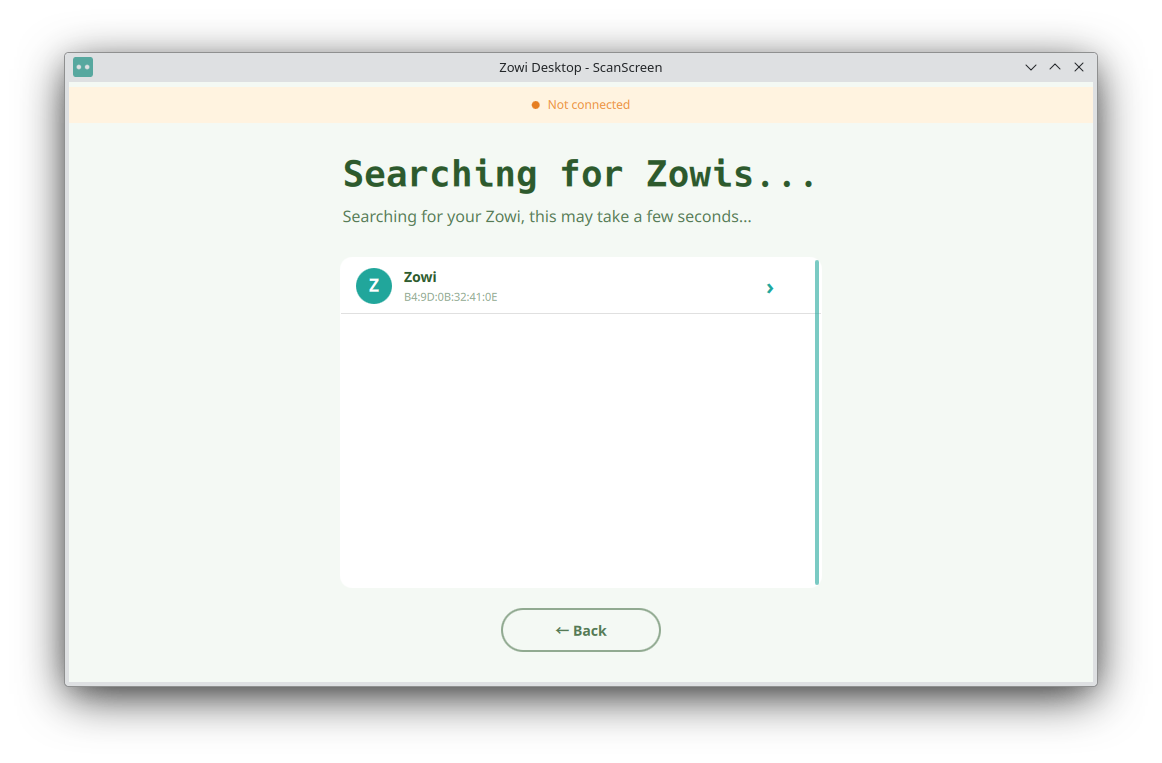
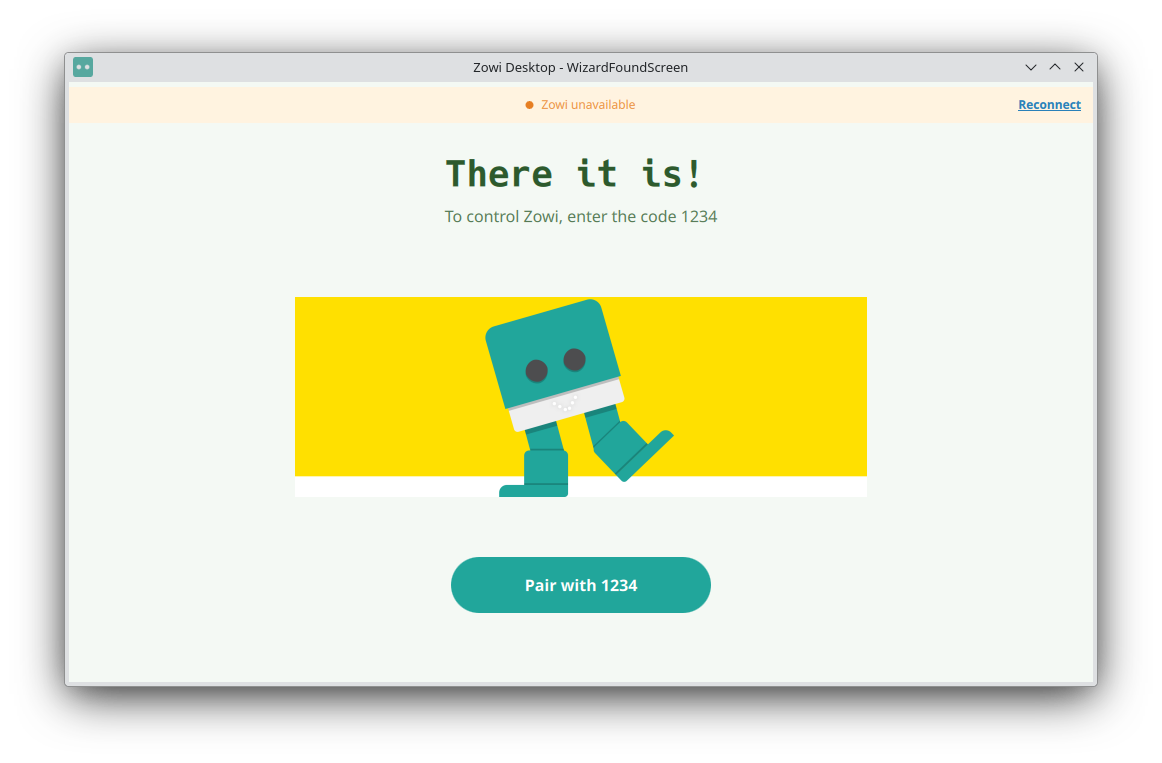
The app scans for nearby Zowi devices. When your Zowi appears in the list, tap it. You will be asked to enter the pairing code 1234 to pair with the robot.
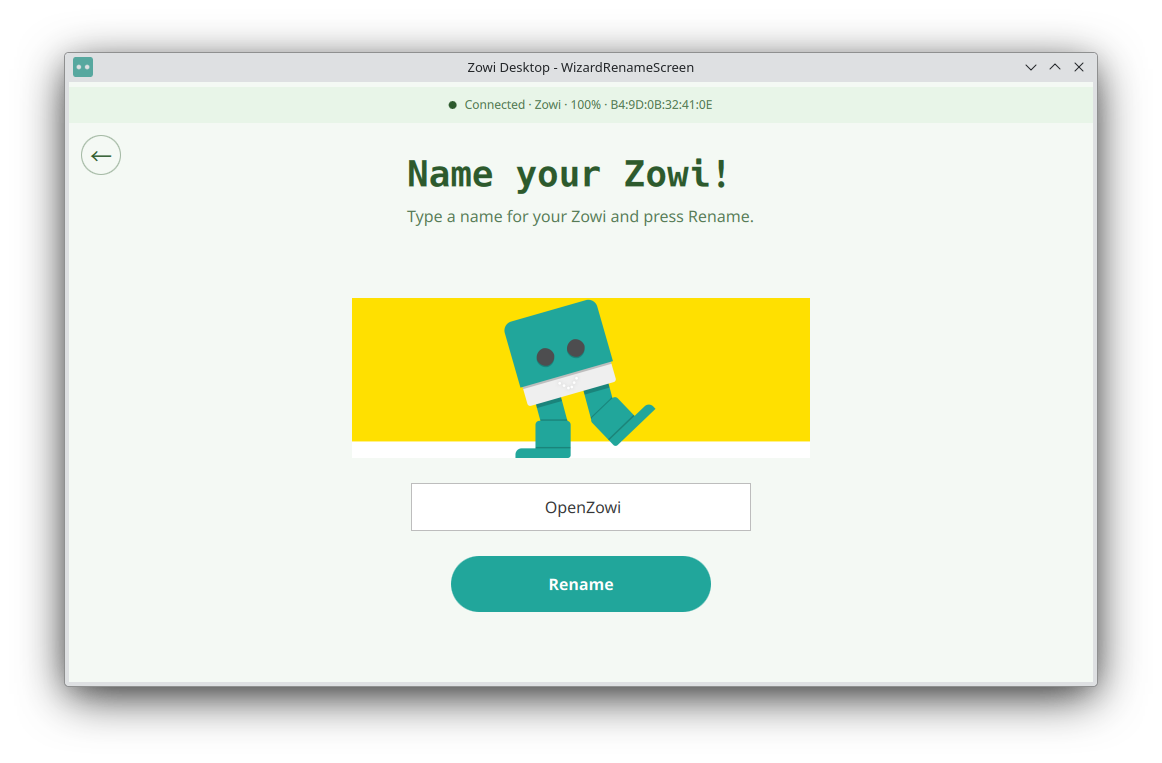
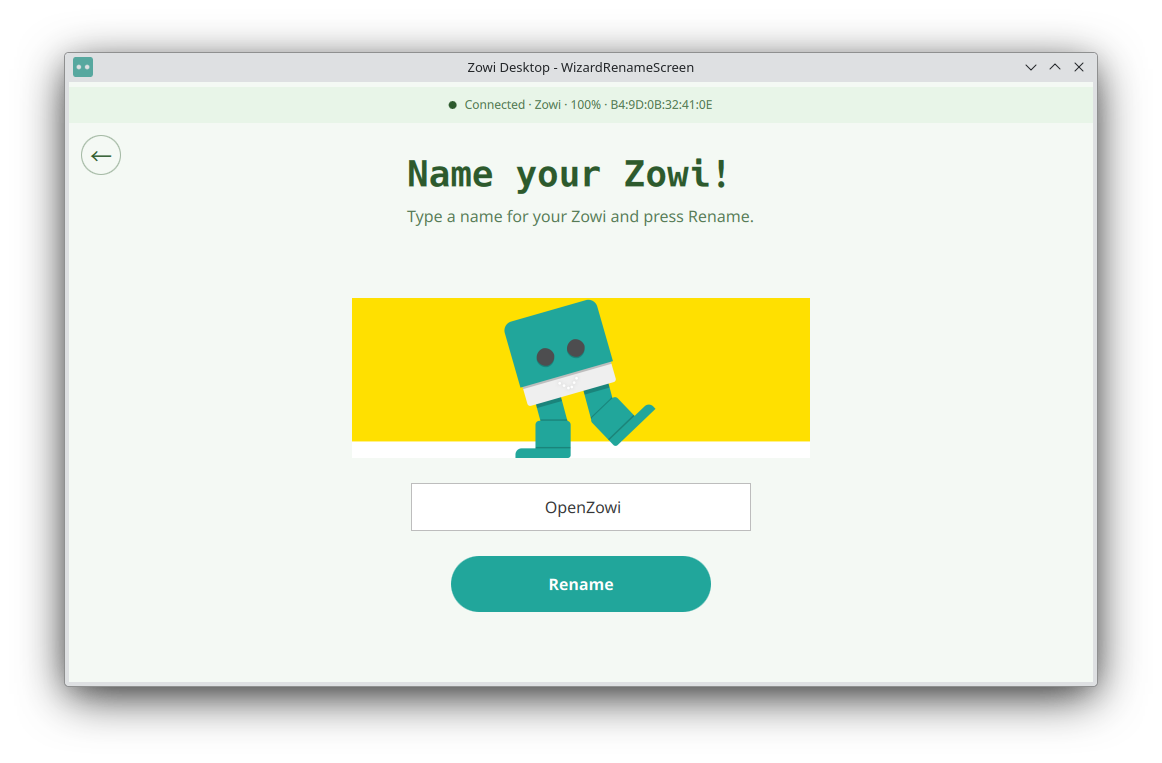
Type a friendly name for your Zowi and press Rename. The name is sent to the robot and remembered for next time.
Once connected you reach the home screen, which has two pages:
Use the top buttons to open Settings and Achievements. The status bar at the top shows the current connection state:
Connected · <name> · <battery>% · <MAC> — your Zowi is ready.Connecting… — the app is trying to reach your Zowi.Zowi unavailable — your saved Zowi is off or out of range; tap Reconnect.Not connected — no Zowi has been set up.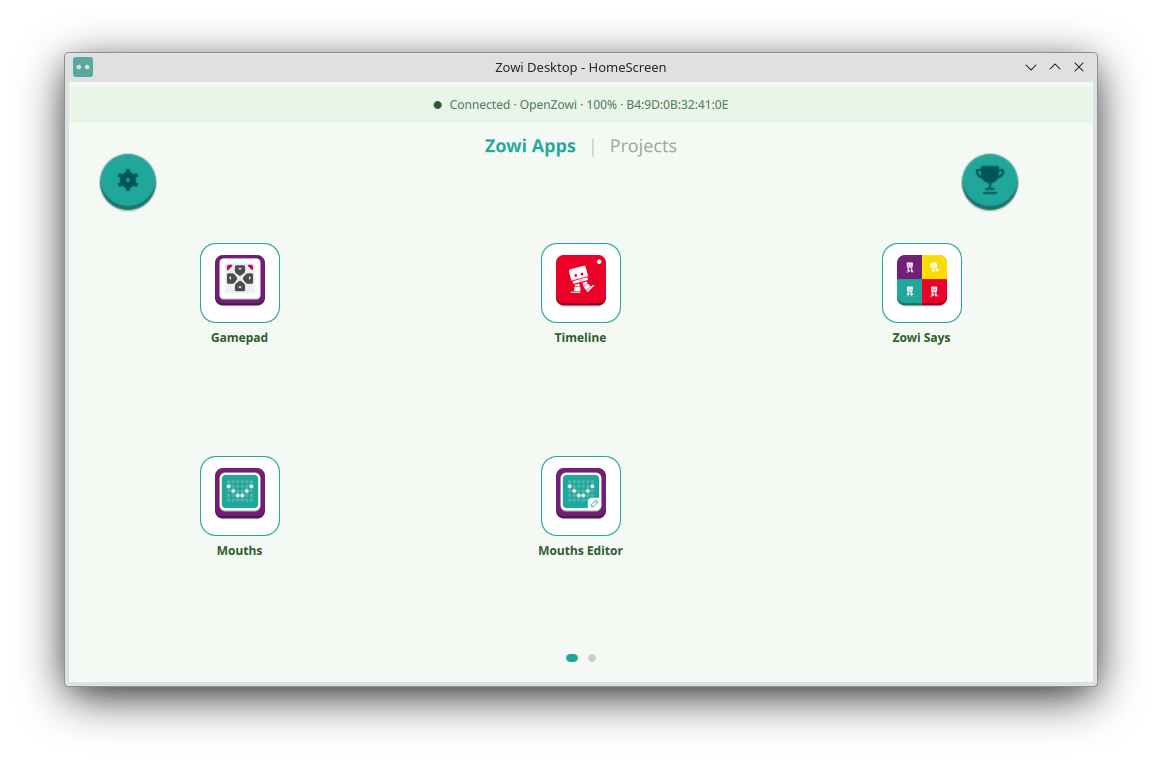
Every time you open the app, Zowi Desktop tries to reconnect to the last used Zowi if it is powered on. If it is off, the status bar will tell you, and you can press Reconnect at any time.
The Reset button, shown in developer mode, removes the registered Zowi from the app and from the Bluetooth system. If no Zowi is registered, a warning message is shown instead.